Knowledge hub

Credit Cards control
Control your credit card from the comfort of your home!
Now, and with our app, you can control everything related to your credit card without the need to visit any of our branches. Our app allows you to manage your card settings from your phone and with easy and simple steps.
How to access your cards
Step 1 of 2
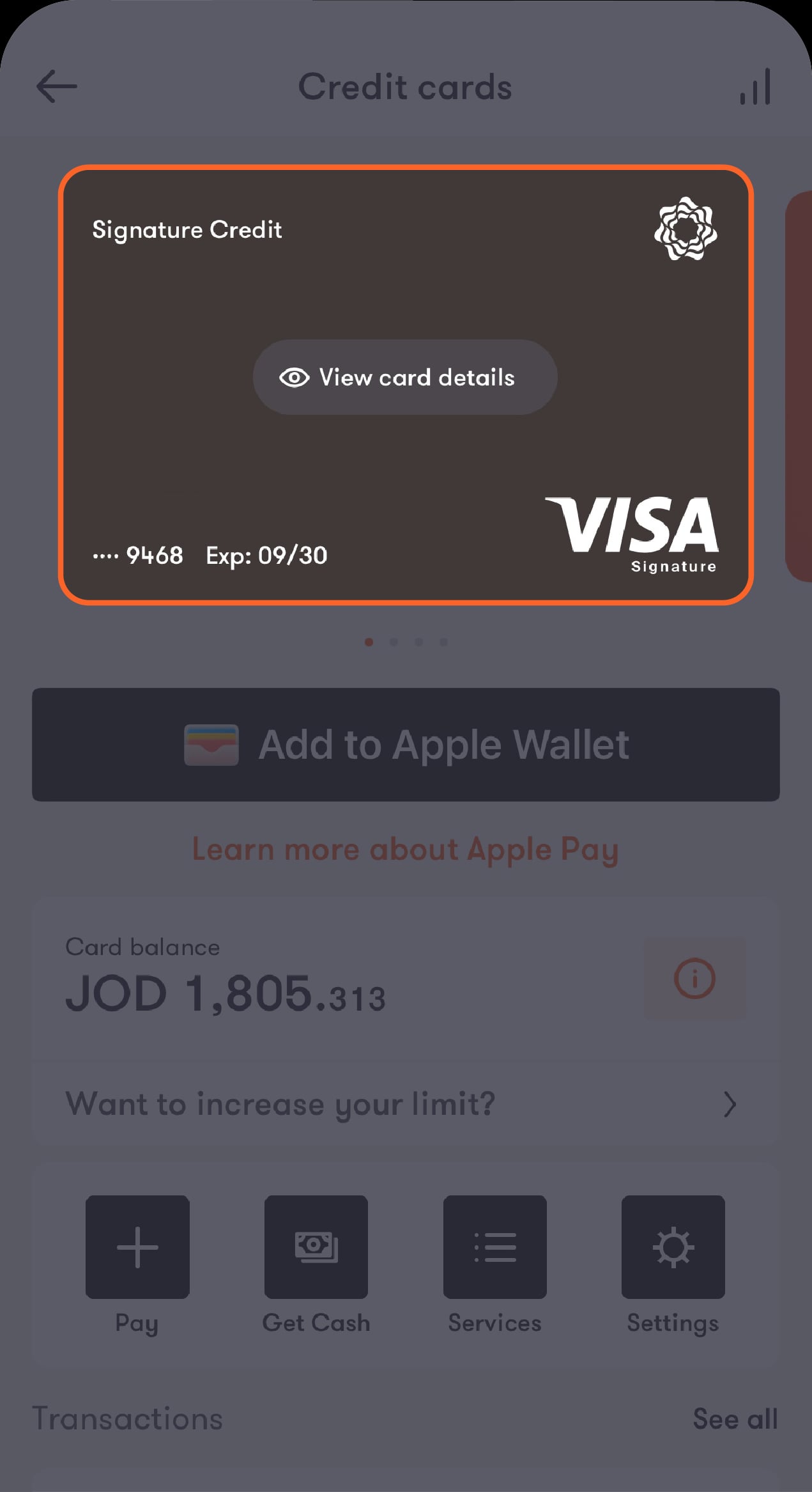
From the Home page tap "Cards "
You will be redirected to a screen containing your cards
Step 2 of 2
Select the card you want to manage
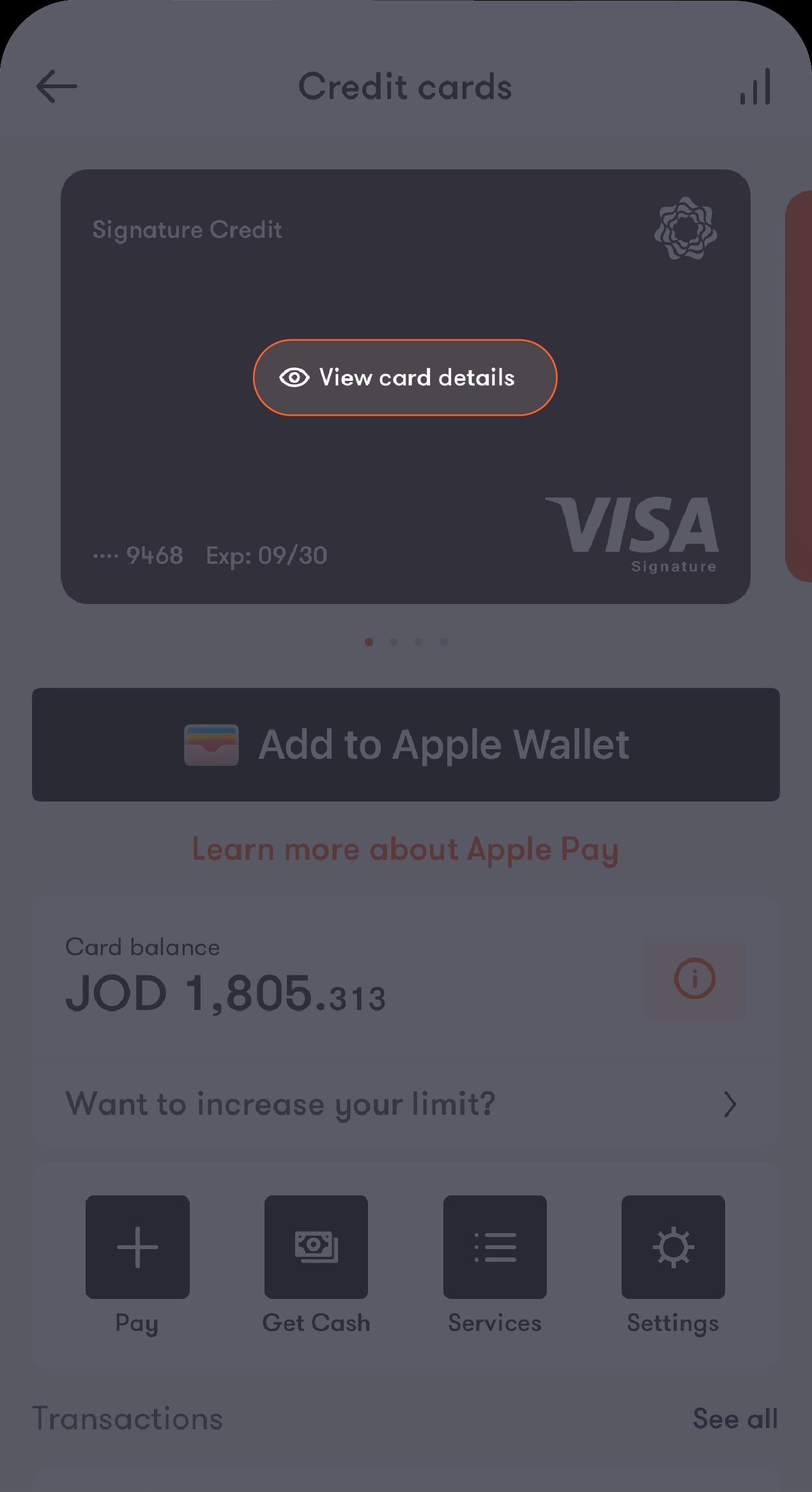
You will be redirected to a screen containing your card information and control features you can choose from.
To get your card information
Step 1 of 2
Tap on "Viewcard details"
Step 2 of 2
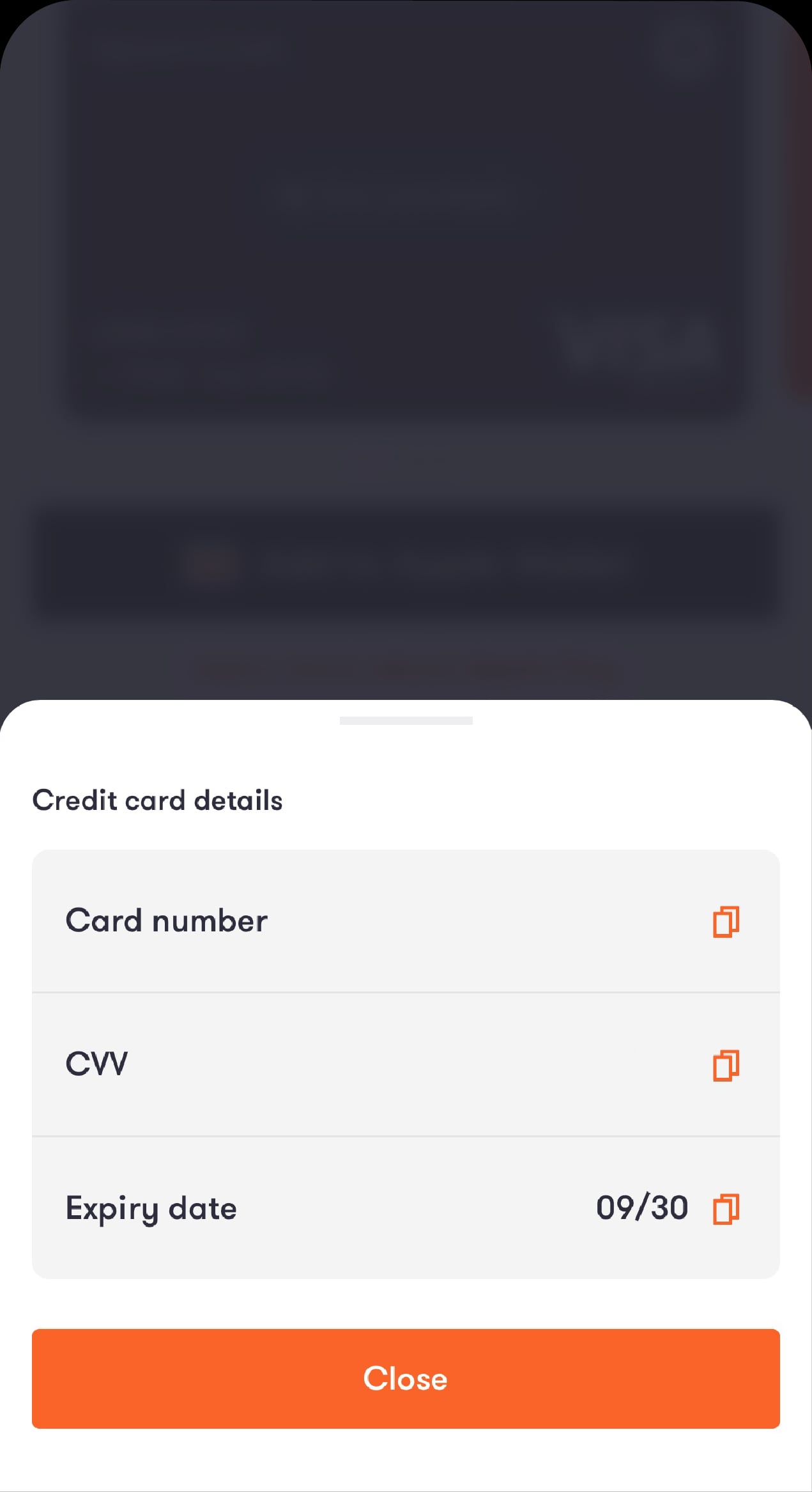
You will be presented with your full card details
To settle your credit card payment
Step 1 of 3
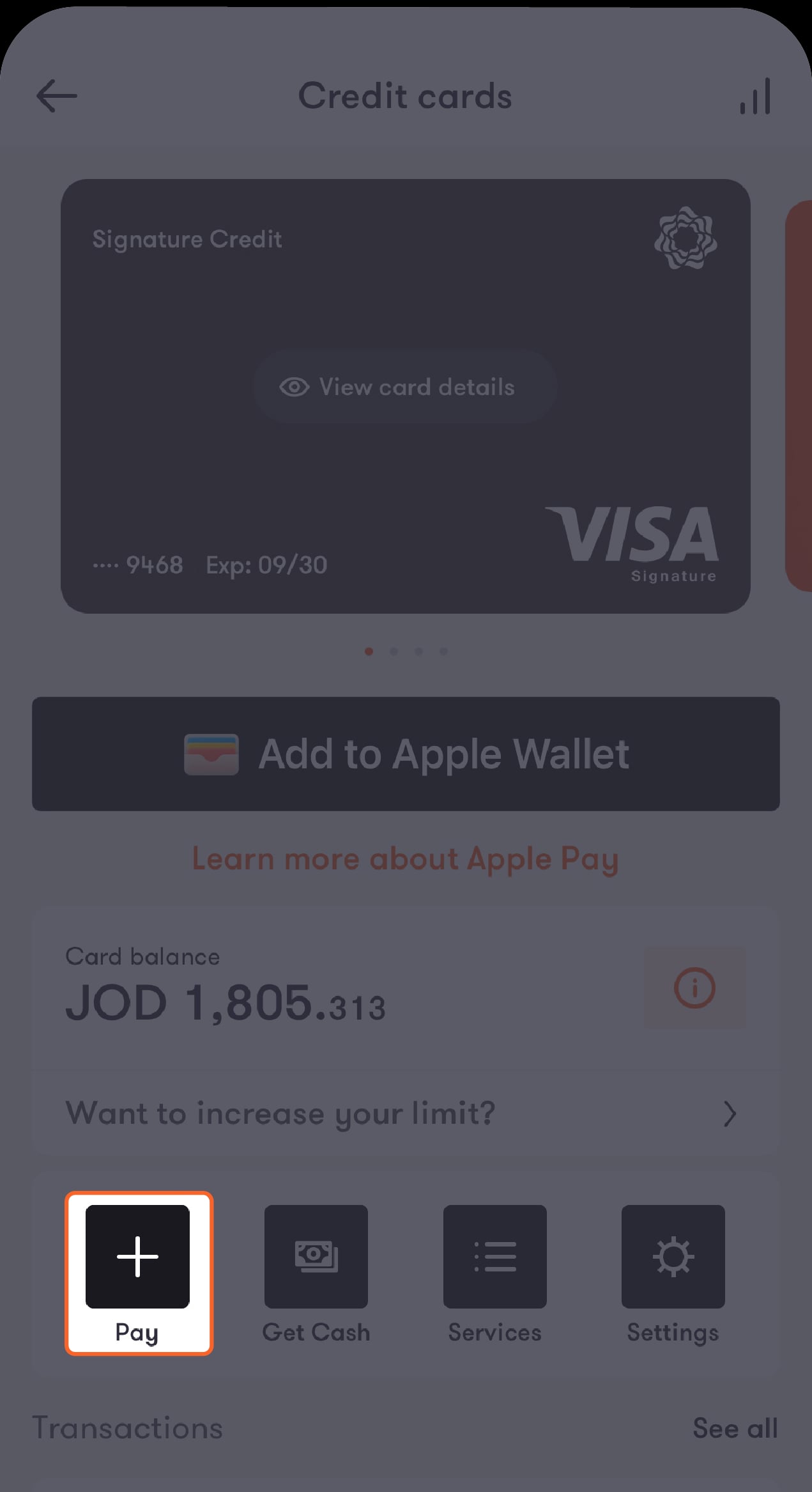
Tap on "Pay"
Step 2 of 3
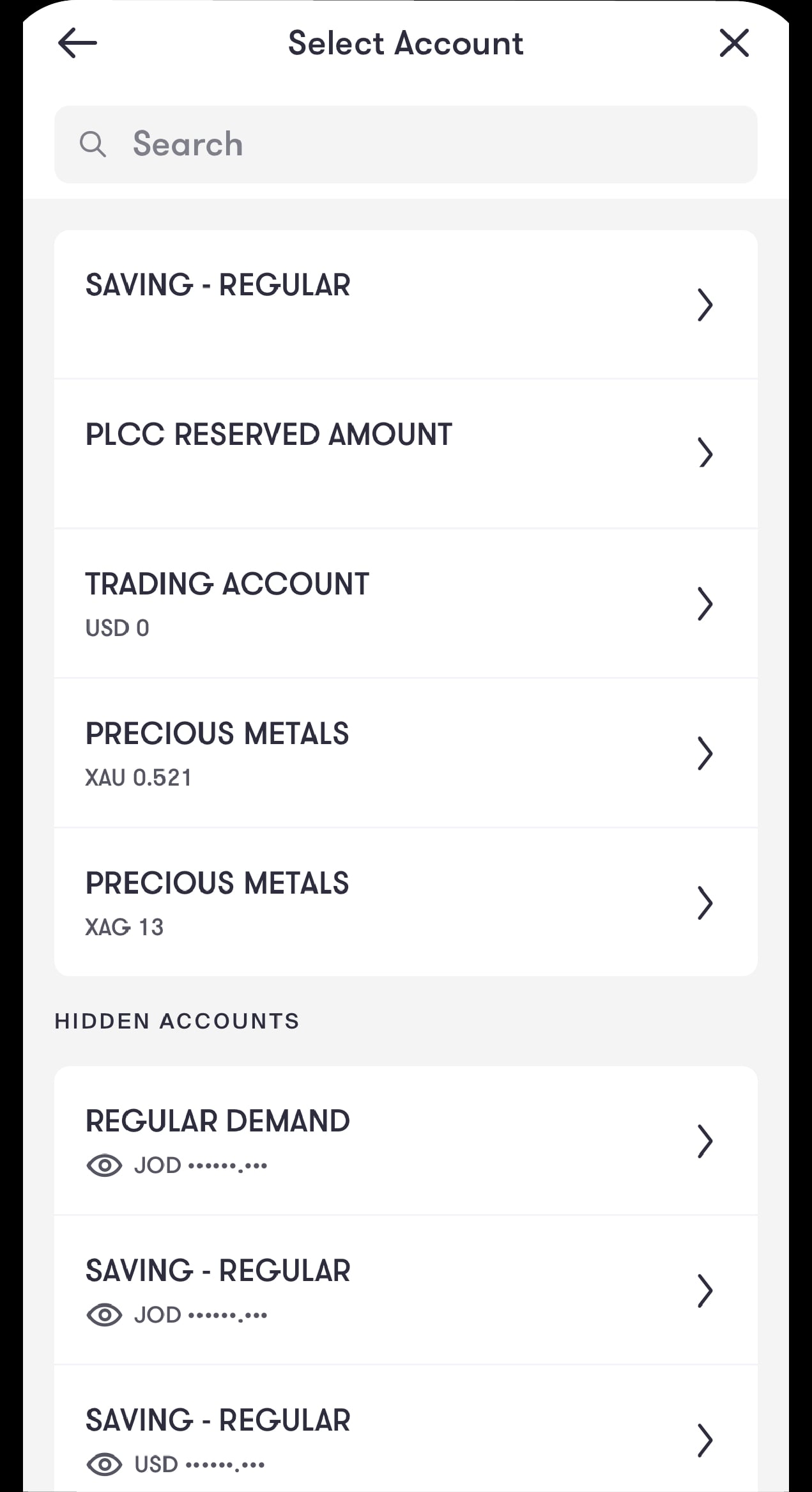
You will be directed to choose the account from which you want to make the payment
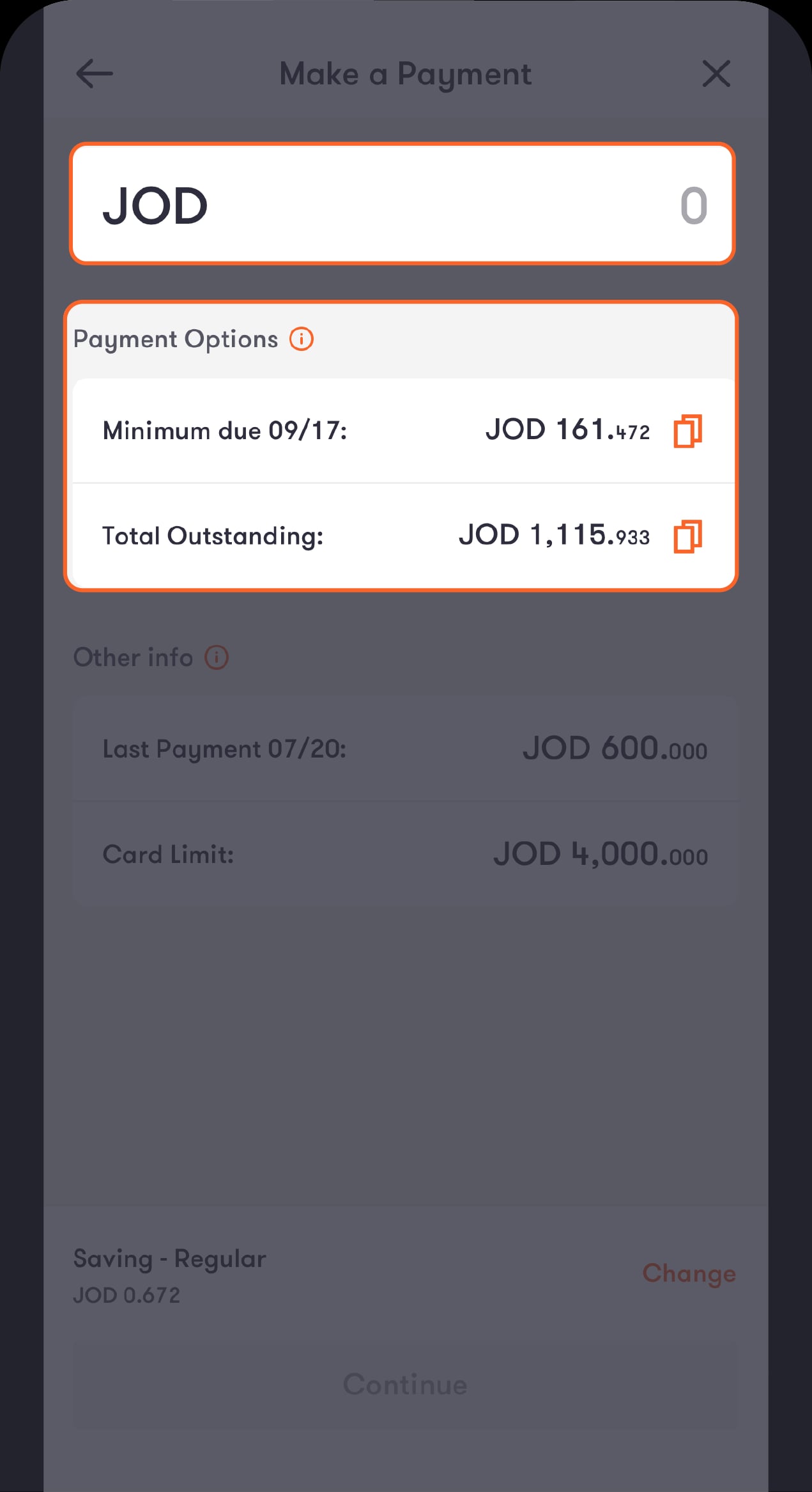
Step 3 of 3
The “Make a Payment” screen will be displayed highlighting the due amount and outstanding balance
Review the details and then tap on "continue"
To control your Internet settings
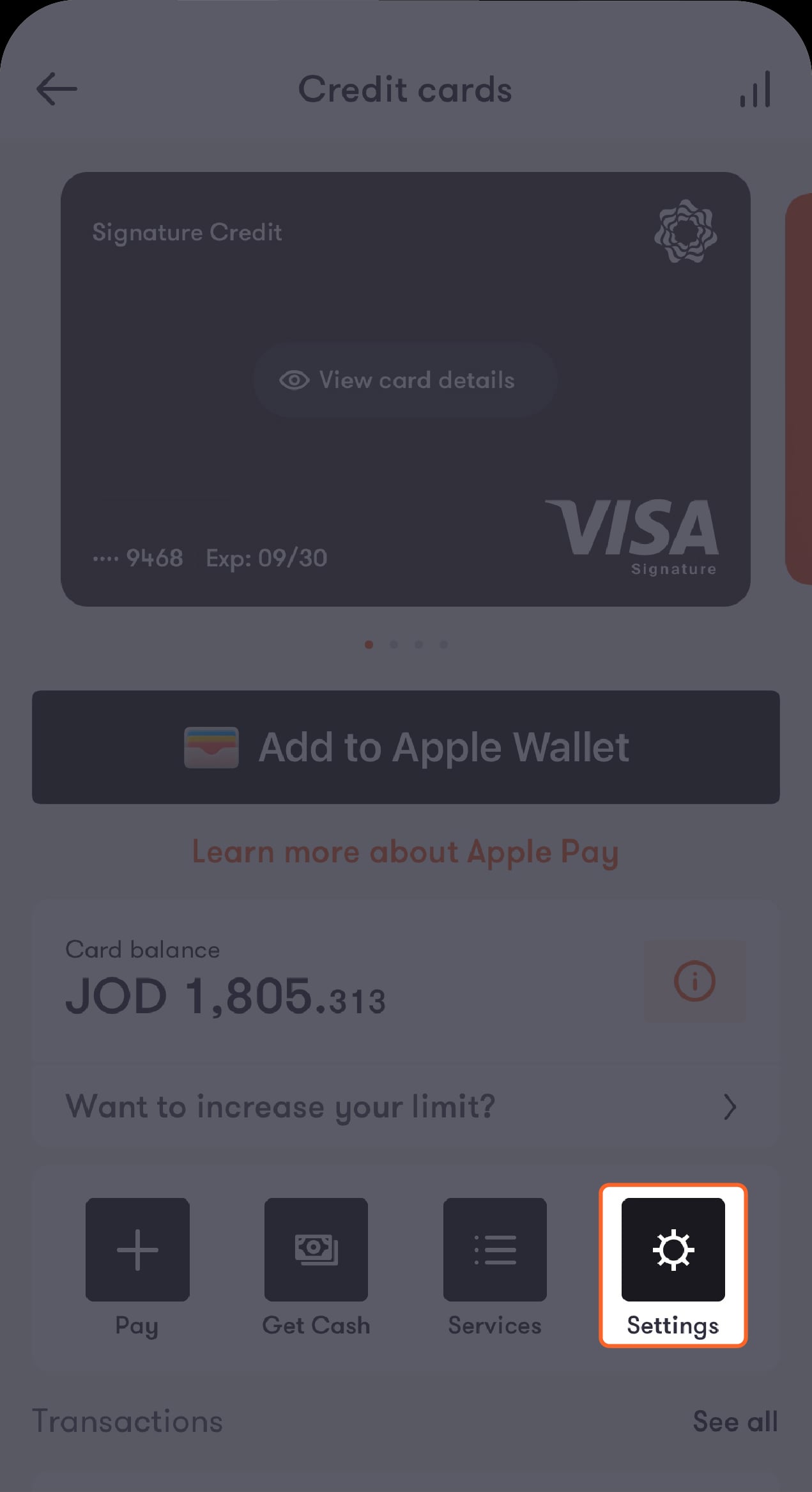
Step 1 of 2
Tap on "settings"
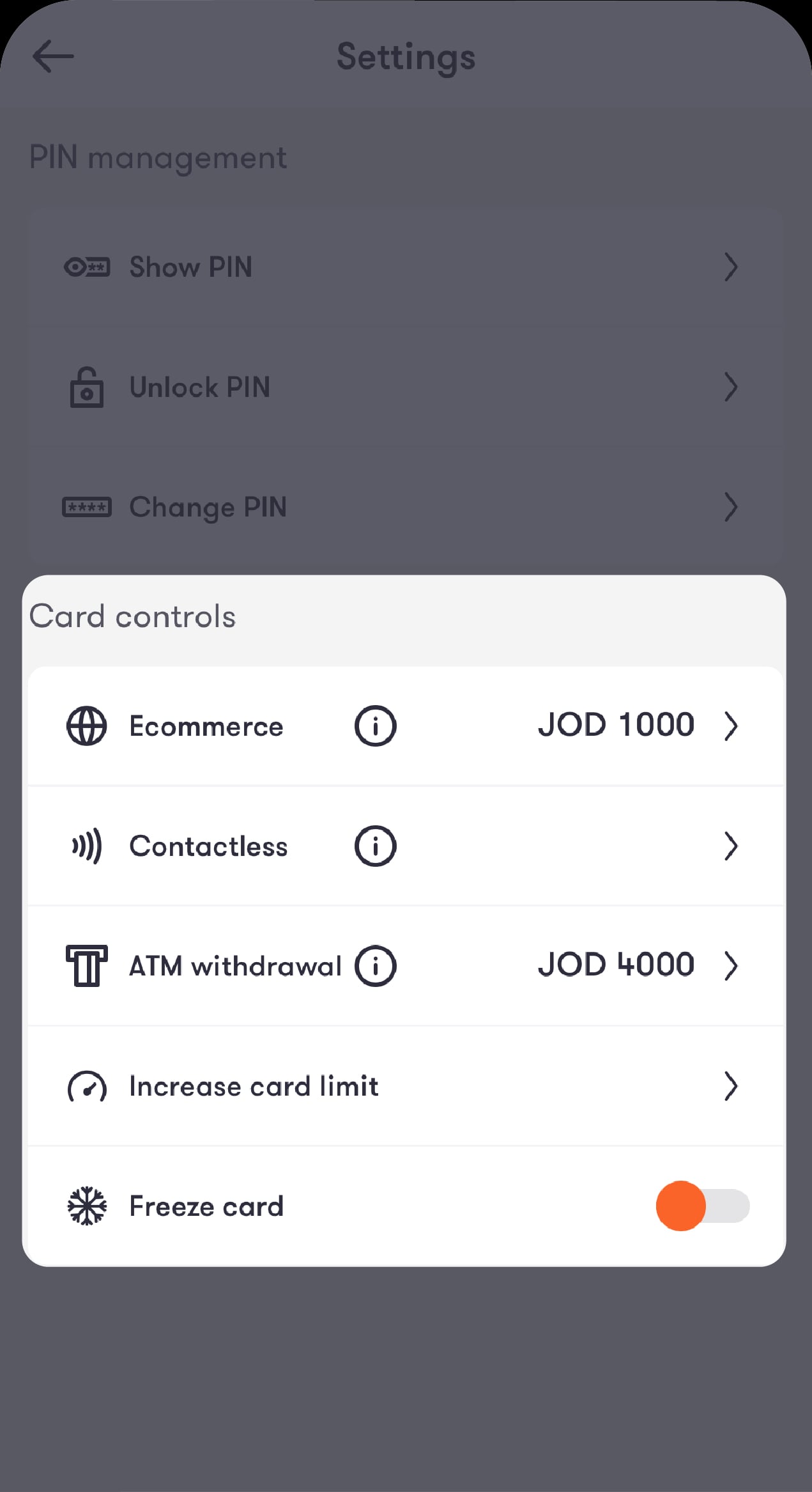
Step 2 of 2
You will be directed to the Card settings screen, where you can choose to enable online shopping, as well as specify your daily limit.
To monitor your purchases
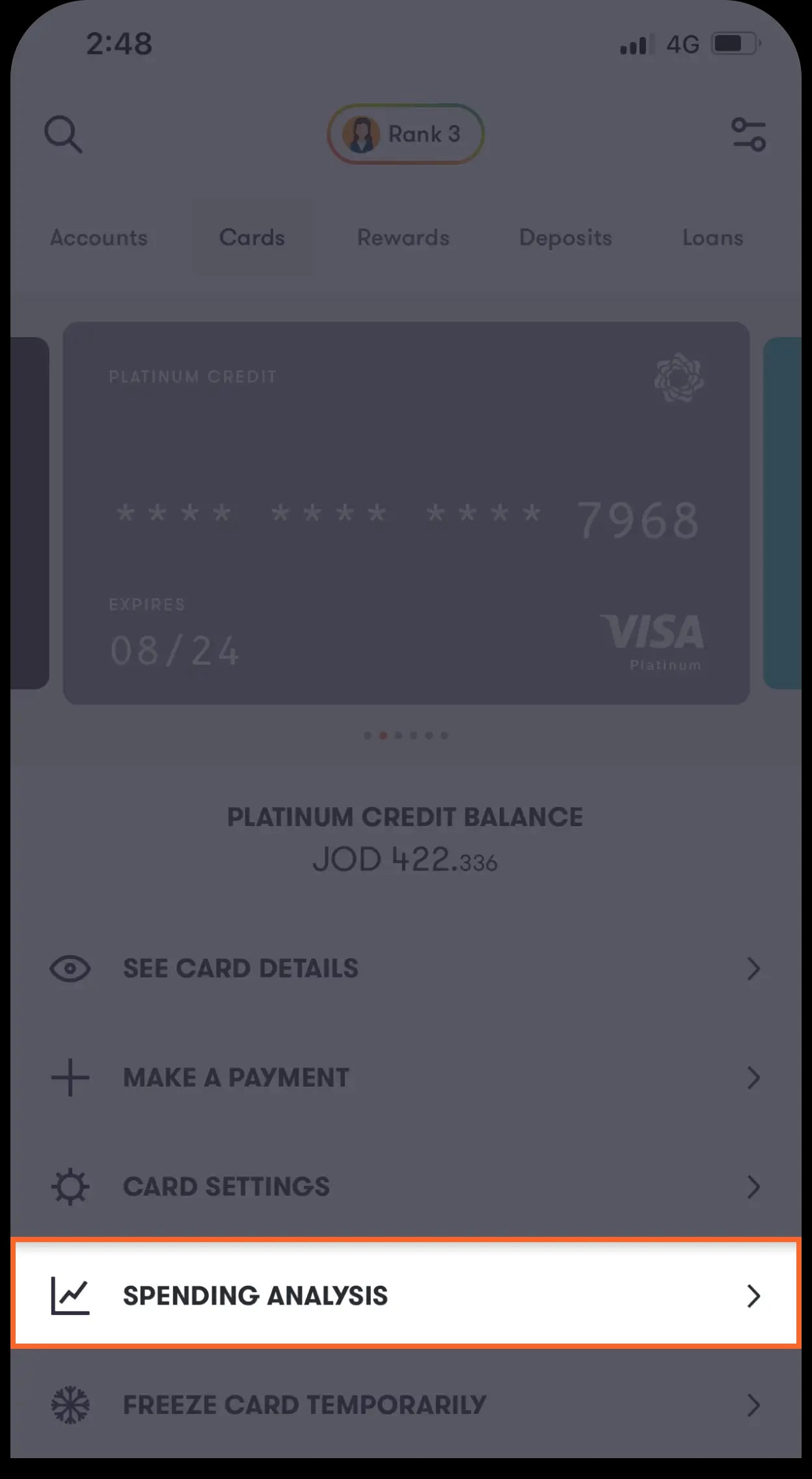
Step 1 of 2
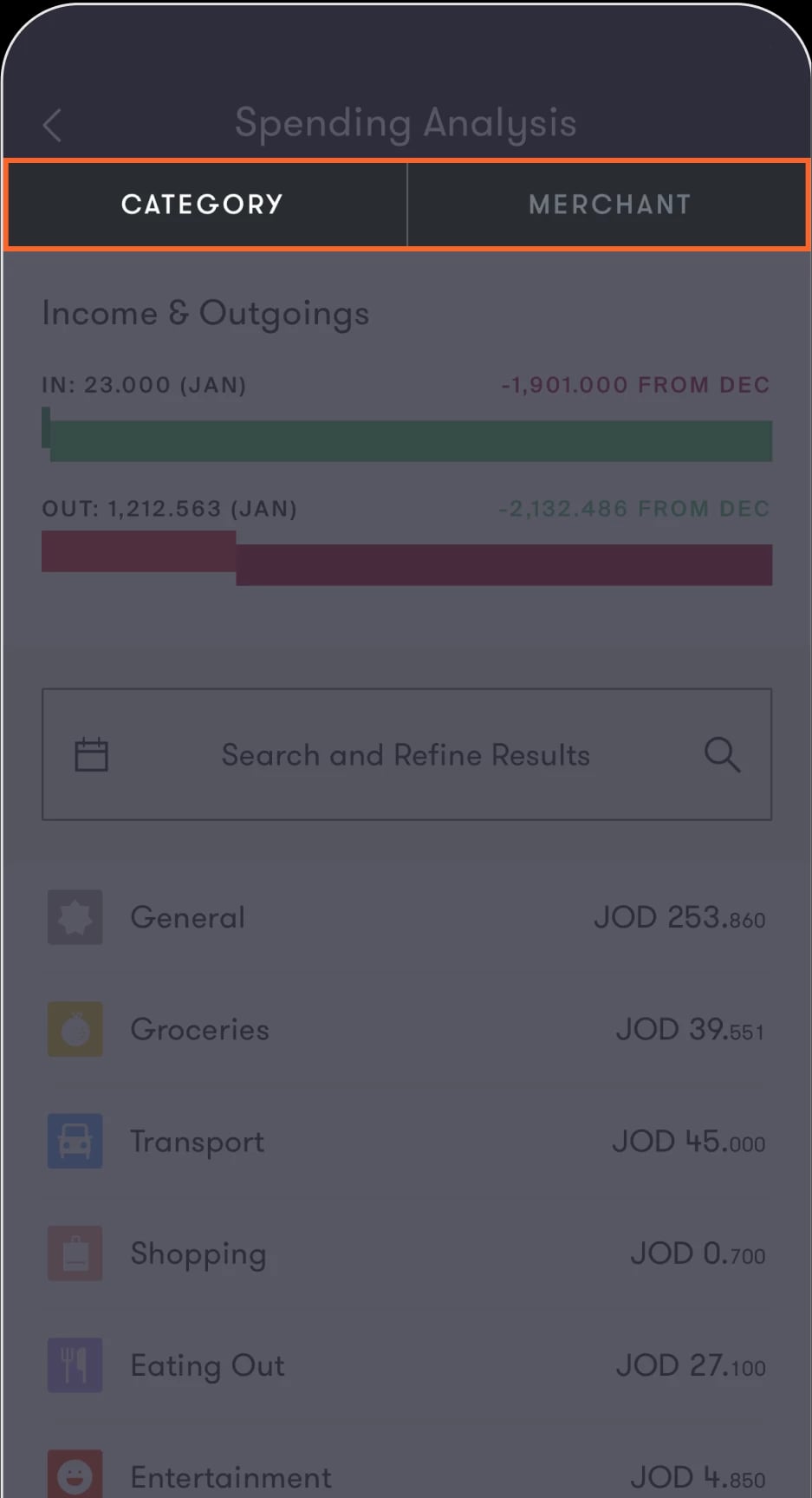
Tap on "Spending analysis"
Step 2 of 2
You will be directed to the “Spending analysis” screen where you can find statistical data of your monthly transactions, as well as switch between the Category and Merchant options.
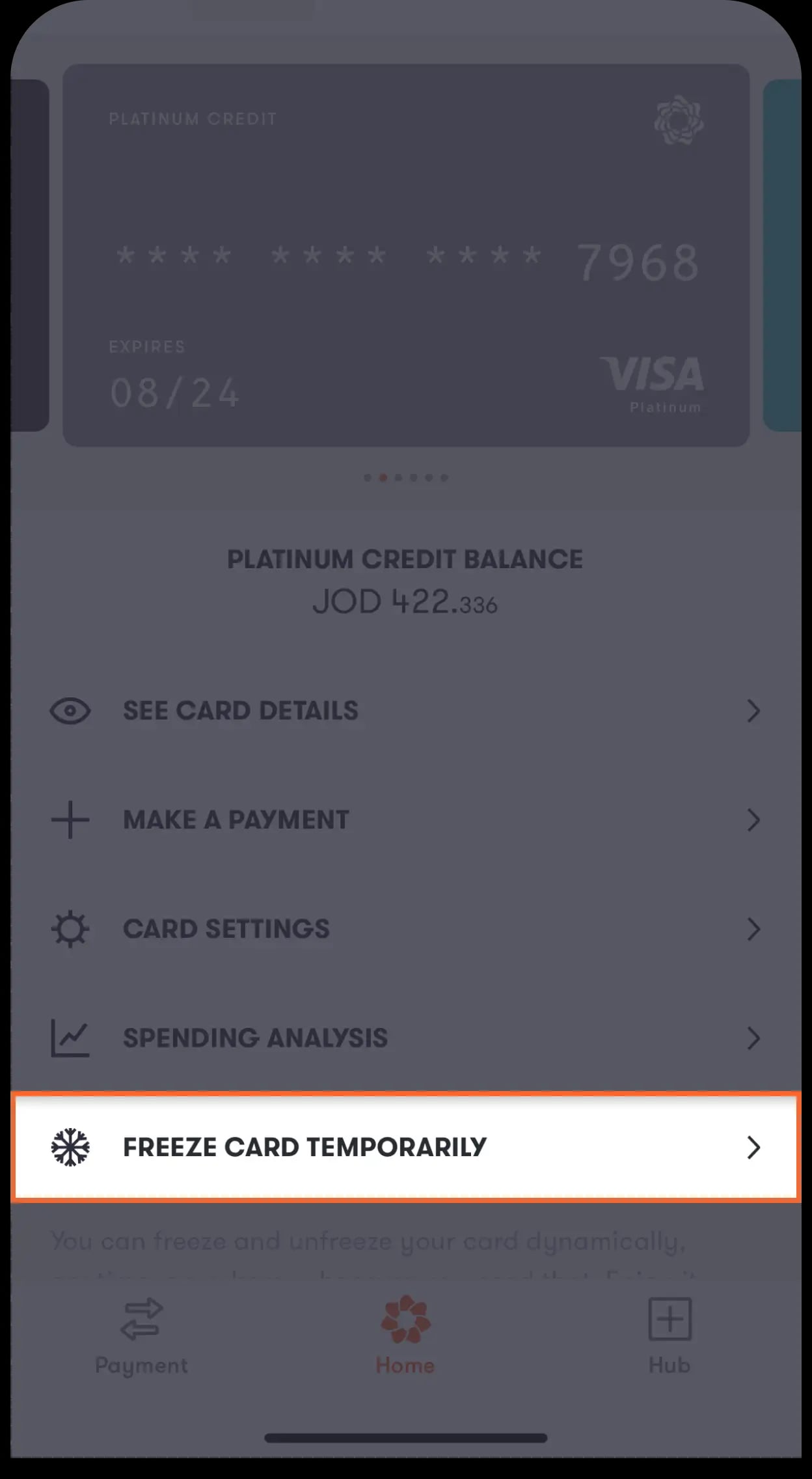
To freeze your card
Step 1 of 2
Tap on "Freeze card"
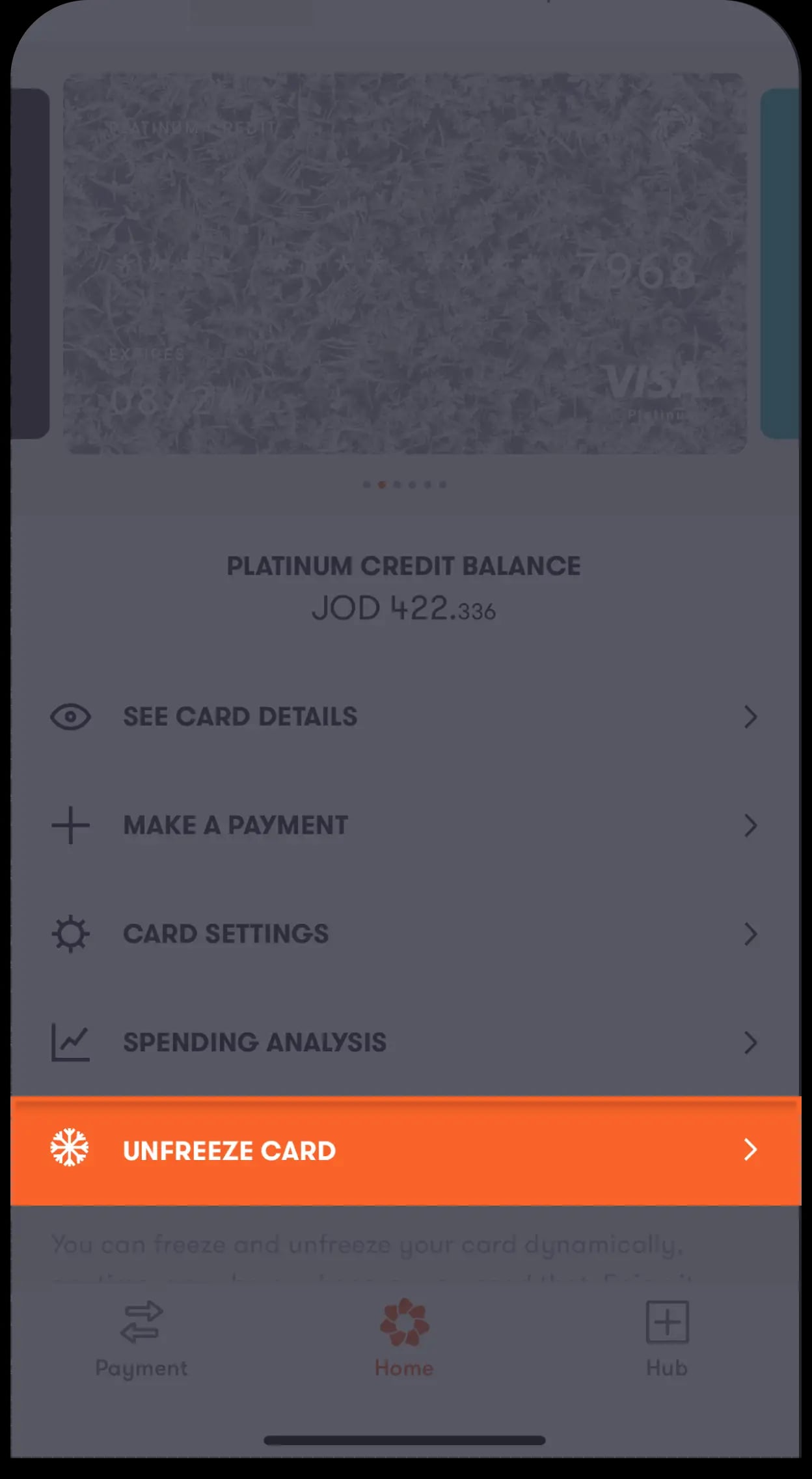
Step 2 of 2
After your card is frozen the “Unfreeze card” button will appear, which you can tap on to unfreeze your card.
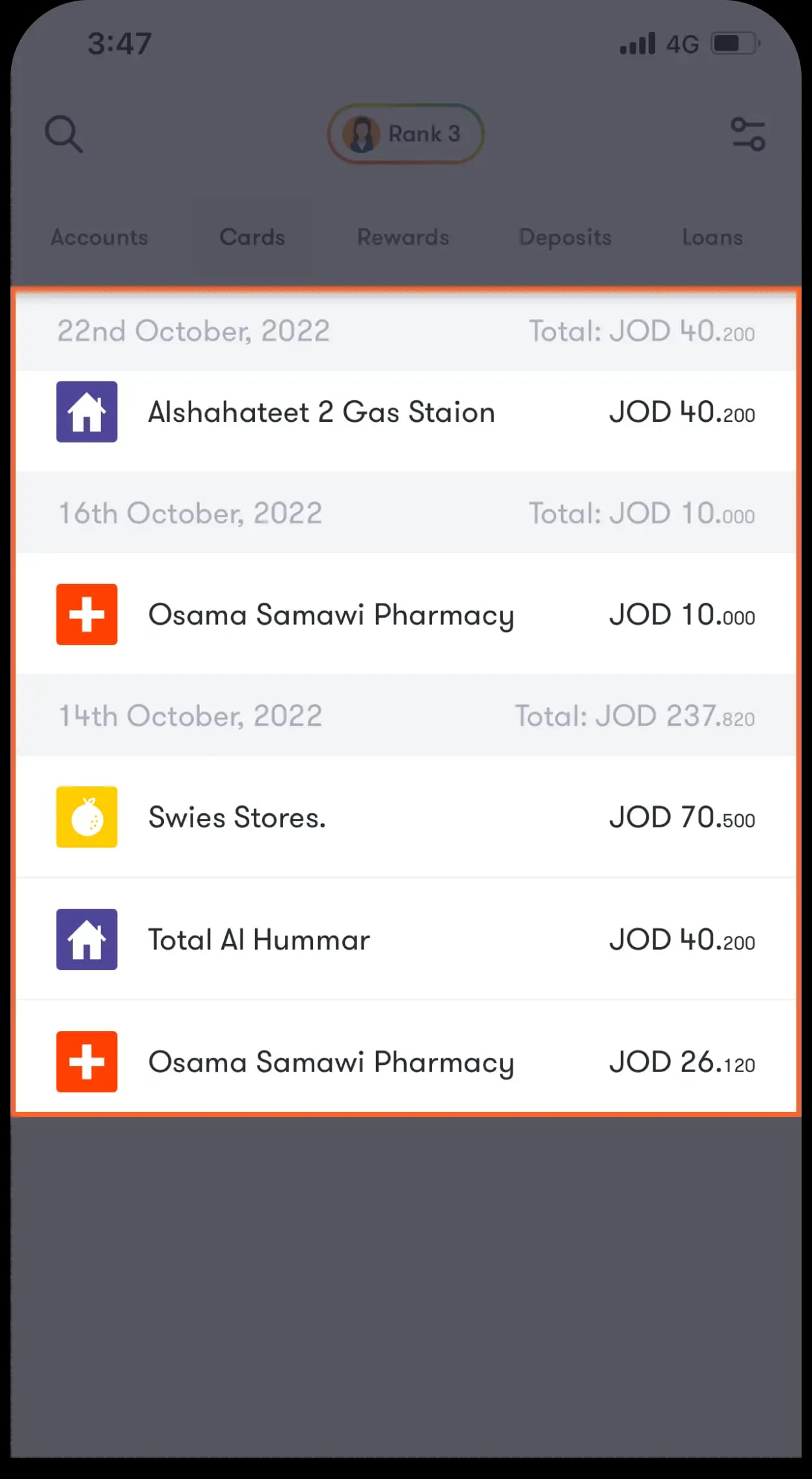
View your transactions
Step 1 of 1
To quickly view your transactions through your card, keep swiping up and a list of your transaction history will appear
Was this article helpful?
We’re always looking to improve, and your feedback will help us shape our future content so we can be as useful to you as we possibly can.