Knowledge hub

Set PIN and Show PIN
Our "Set PIN and Show PIN" feature is designed specifically for your virtual cards.
Our “Set PIN and Show PIN” feature is designed specifically for your virtual cards. Whether you’re using a prepaid JOD card, multi-currency card, or any card linked with Apple Pay or Tap to Pay, this feature offers added security to your transactions.
Set PIN
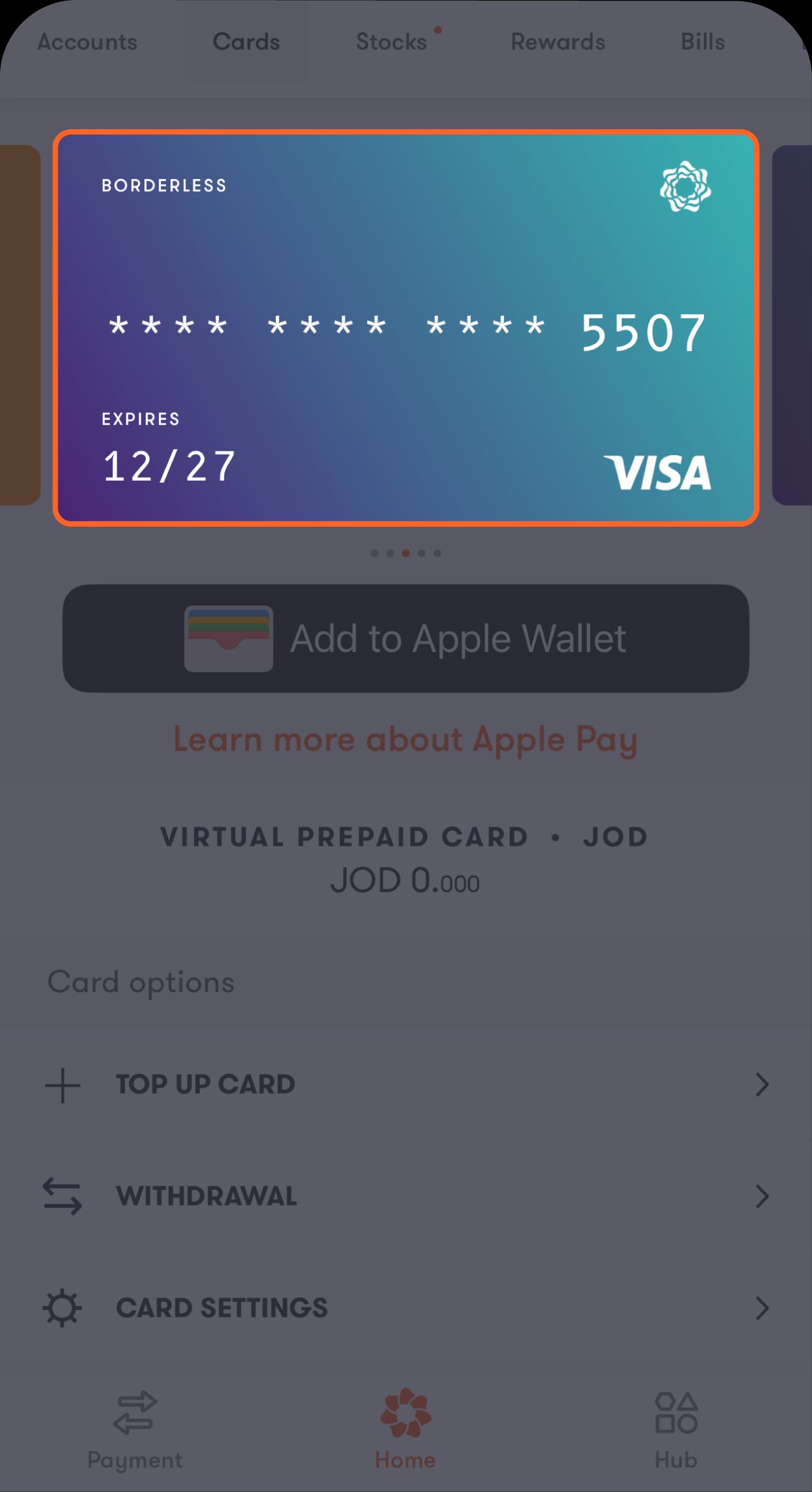
Step 1 of 4
Tap on "Cards" located at the top of the main screen
Swipe left to select the card you want to set a PIN for.
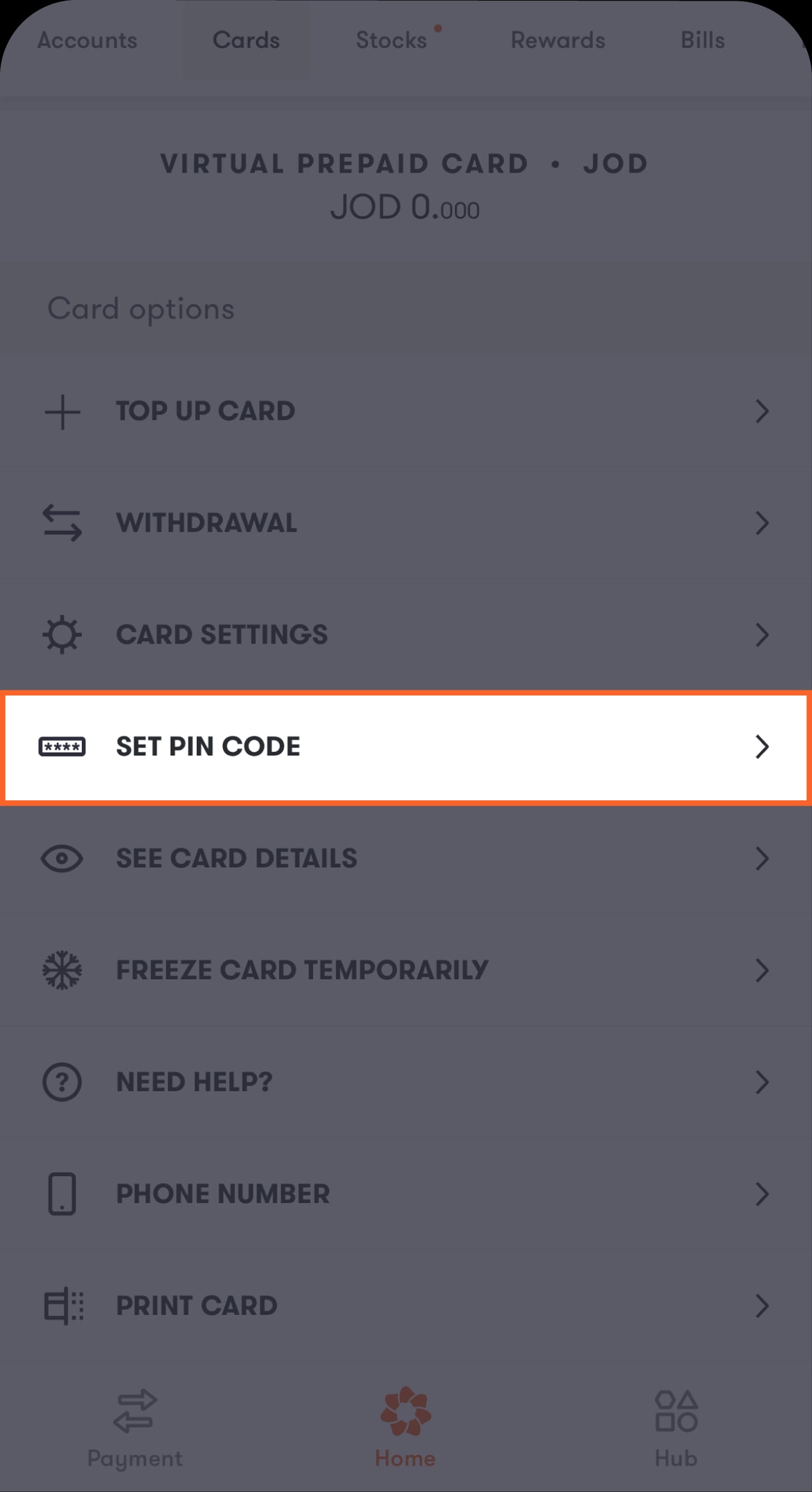
Step 2 of 4
Scroll down to the "Card options" section
Tap on "Set PIN Code".
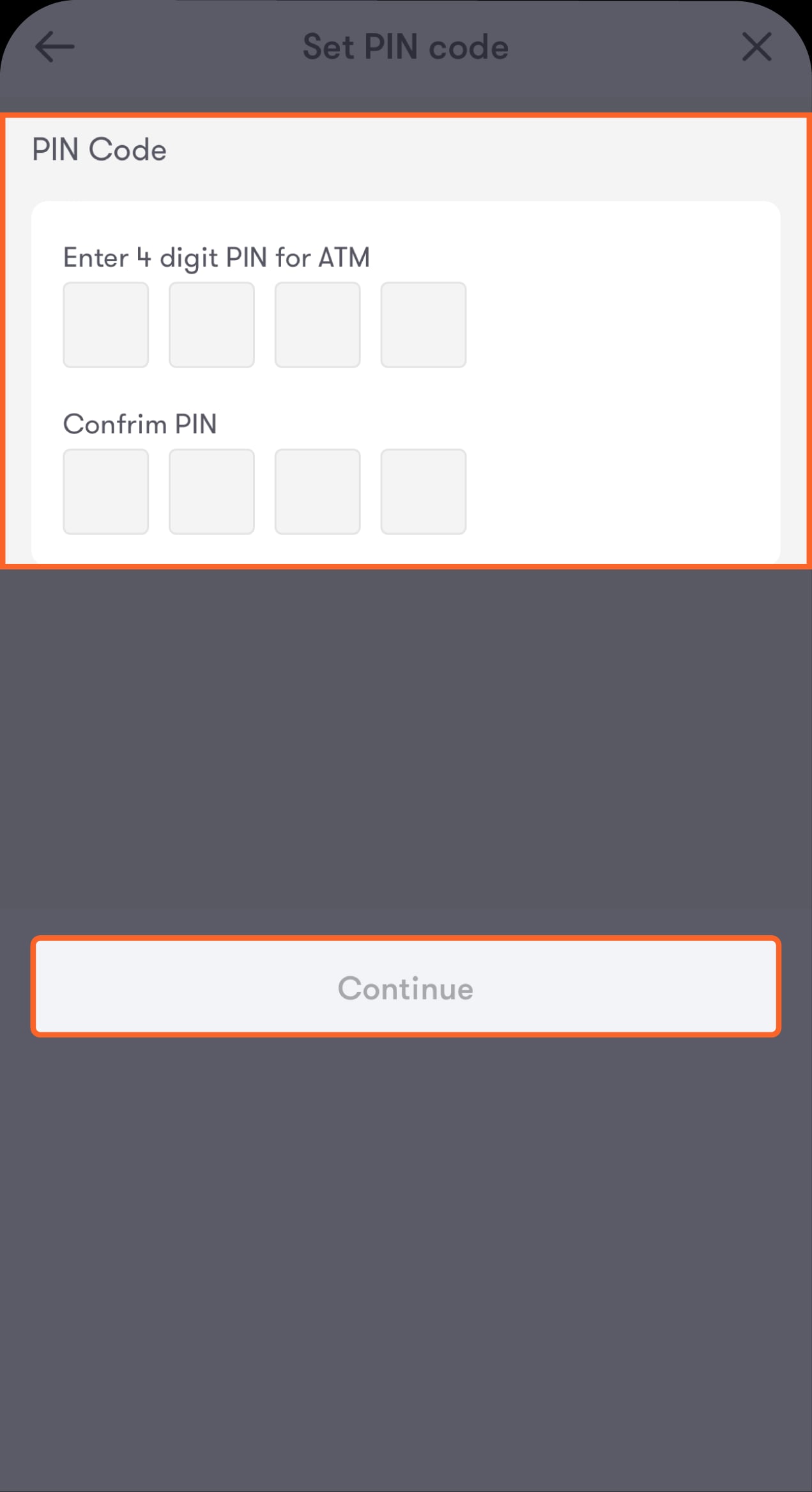
Step 3 of 4
Choose a PIN for your card
Once you re-enter your 4-digit PIN to confirm your selection, tap on "Continue" to proceed to the final step.
Step 4 of 4
The process was completed successfully
You've set a PIN for your card.
Show PIN
Step 1 of 4
Tap on "Cards" located at the top of the main screen
Swipe left to select the card you want to view the PIN for.
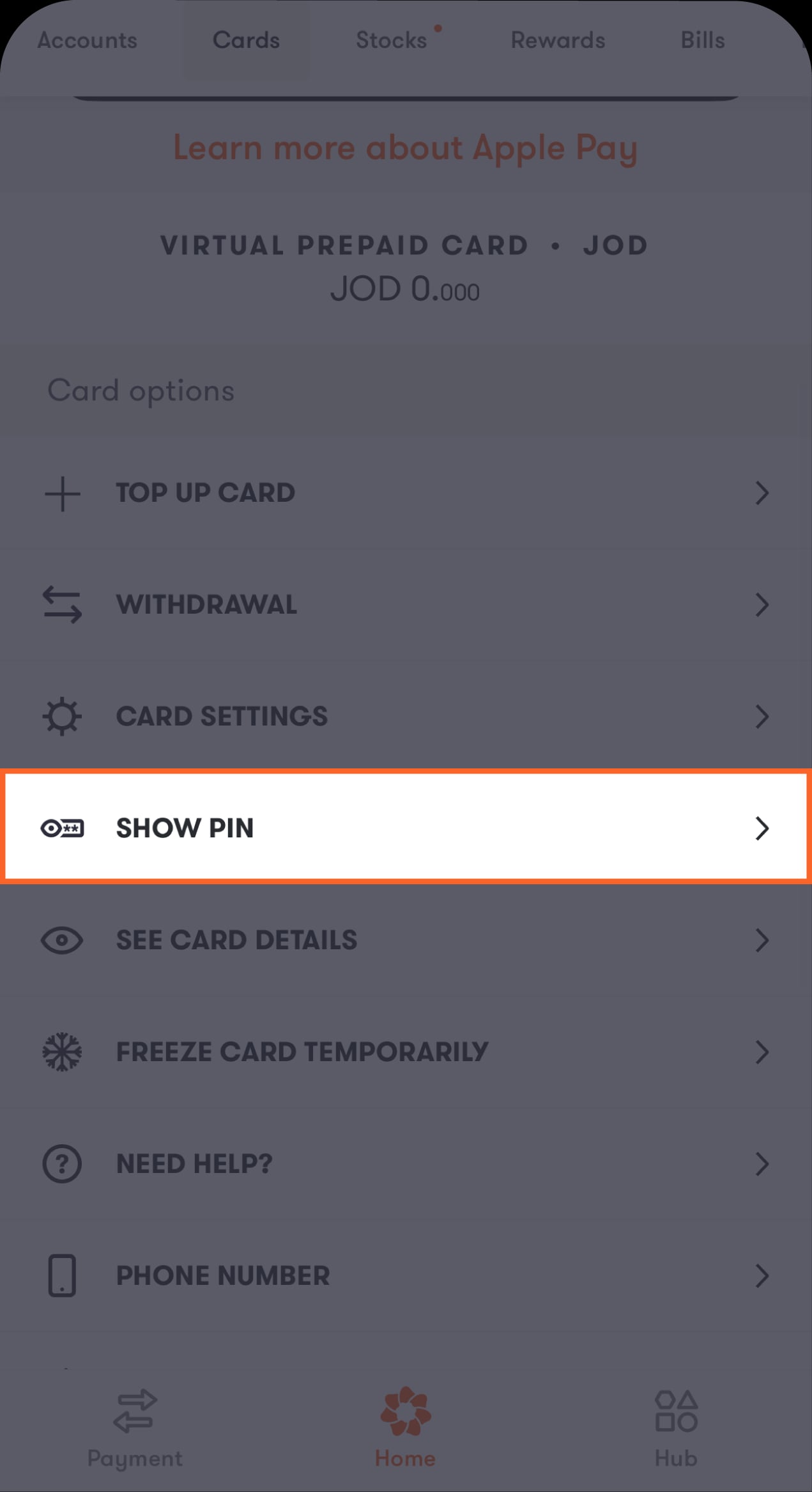
Step 2 of 4
Scroll down to the "Card options" section
Tap on "Show PIN".
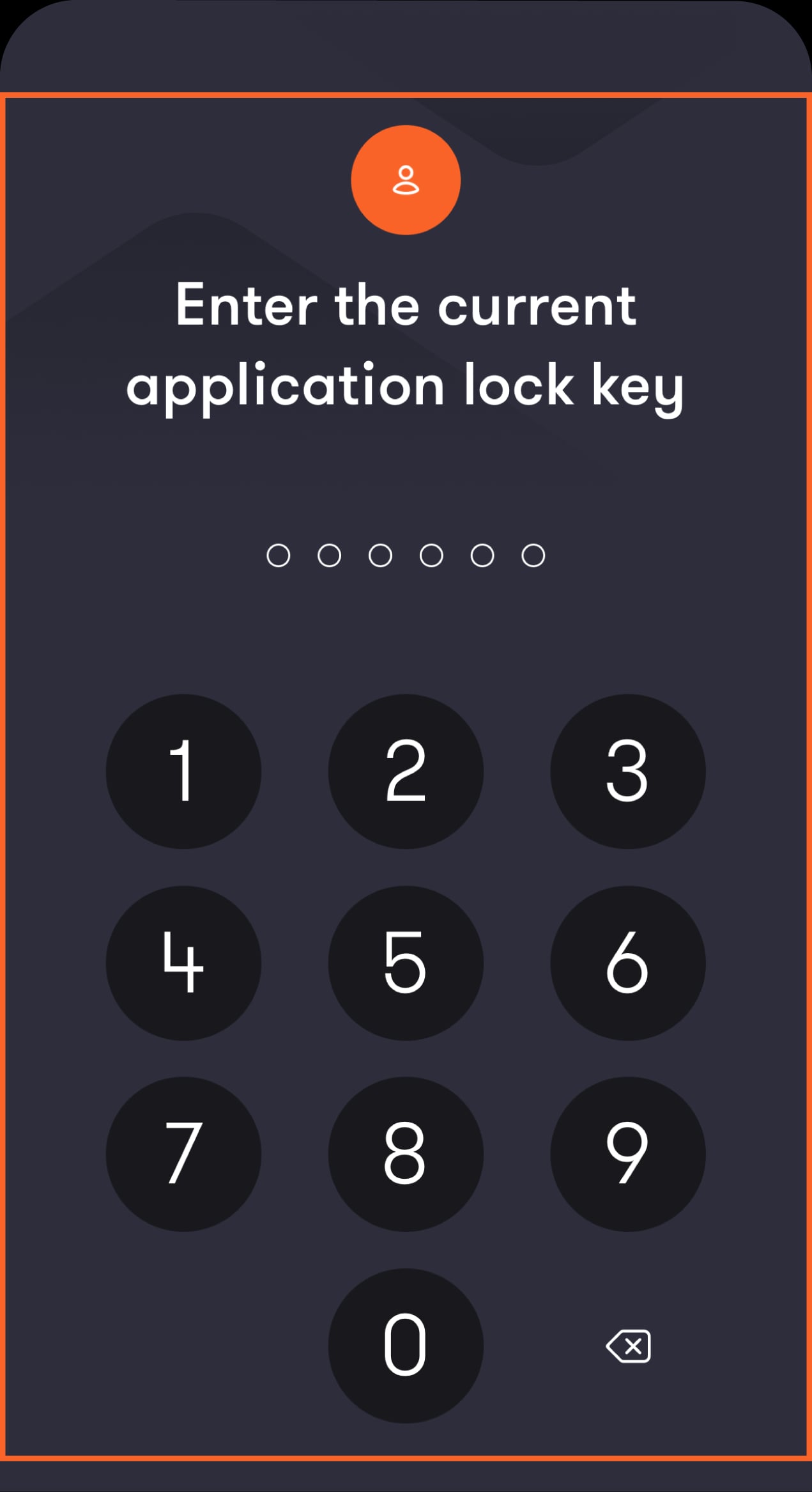
Step 3 of 4
For security purposes, we need to verify that it's really you making the request
To proceed, either use your Face ID or enter your app password.
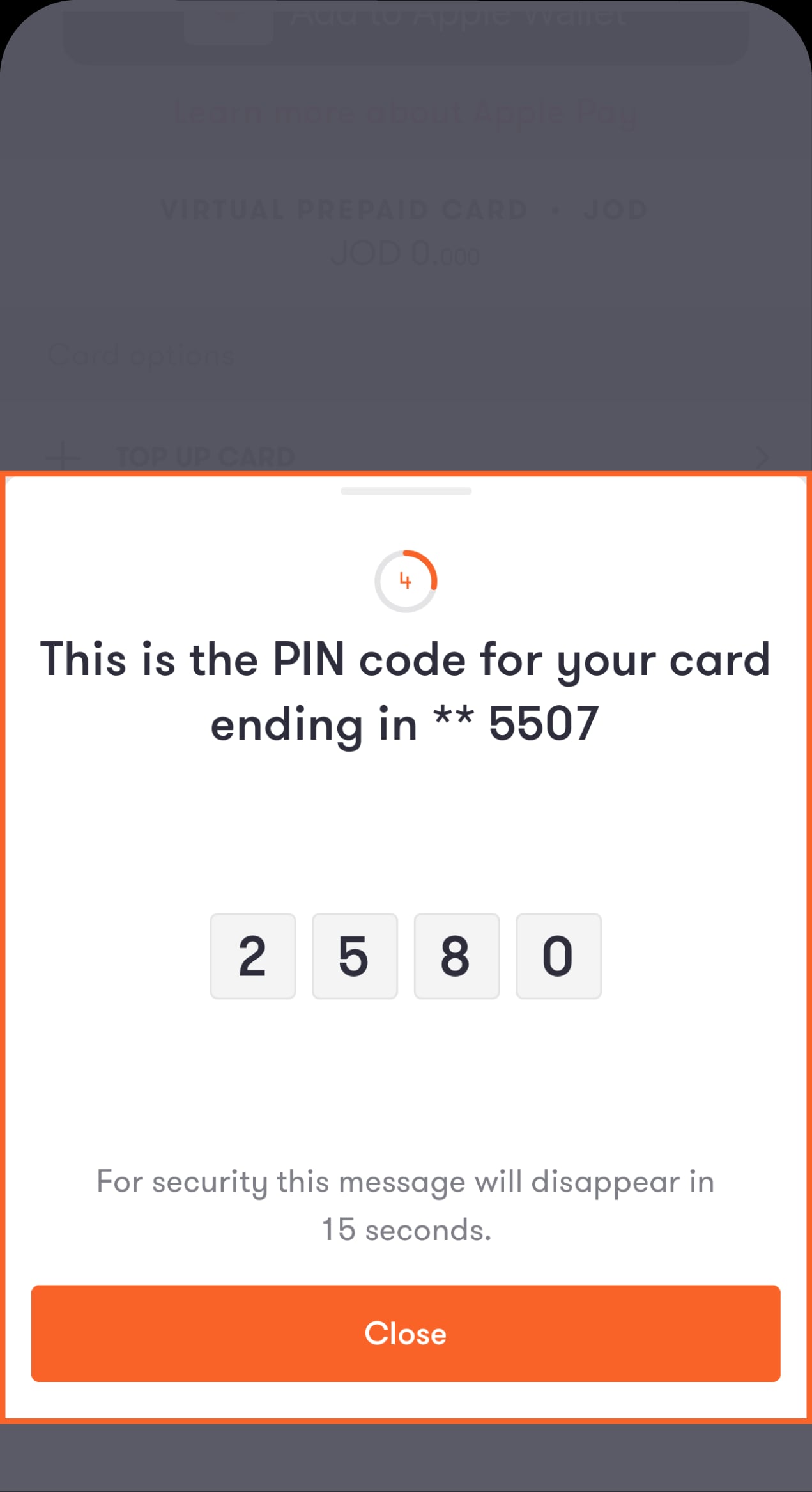
Step 4 of 4
The process was completed successfully
You can view your PIN now.
Was this article helpful?
We’re always looking to improve, and your feedback will help us shape our future content so we can be as useful to you as we possibly can.